
Smartphone Battery Draining Fast? Hidden Wi-Fi and Bluetooth Settings Could Be the Reason
By Lokmat Times Desk | Updated: January 6, 2026 18:04 IST2026-01-06T18:02:49+5:302026-01-06T18:04:35+5:30



If your smartphone battery drains within a few hours and struggles to last an entire day, the cause may ...
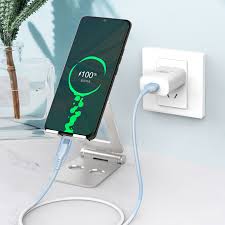
Smartphone Battery Draining Fast? Hidden Wi-Fi and Bluetooth Settings Could Be the Reason
If your smartphone battery drains within a few hours and struggles to last an entire day, the cause may be hidden in your phone’s background activity. Many devices continue scanning for Wi-Fi and Bluetooth connections even when these features appear to be turned off. This silent process consumes power throughout the day without the user noticing. By adjusting a few built-in settings, you can reduce unnecessary background tasks and significantly improve battery life without installing any apps. Understanding how background scanning works and disabling it correctly can help your phone last longer and perform more efficiently on a single charge.
How background scanning silently drains your battery
Modern smartphones constantly run Wi-Fi, Bluetooth and sensor scans in the background to detect nearby networks and devices. This activity continues even when the screen is off. In areas with weak signals, the phone works harder to find connections, which increases power consumption. Over time, this continuous searching leads to rapid battery drain. In some cases, mobile data is also used during these scans without the user’s knowledge. Since these processes run nonstop, they slowly but steadily reduce battery life, making the phone discharge much faster than expected.Why Deep Sleep mode matters for battery health
Deep Sleep mode allows a smartphone to rest when it is not in use. During this state, unnecessary apps and background processes are paused, reducing stress on the processor and battery. This helps conserve power and extend standby time. However, if Wi-Fi and Bluetooth scanning remain active, the phone cannot fully enter Deep Sleep mode. The system stays partially awake, leading to constant power usage. As a result, the battery continues to drain even when the device is idle, affecting overall battery efficiency.Two Android settings you should turn off immediately
On Android smartphones, stopping background scanning is simple. Open the Settings app, go to Location, and then select Location Services. Here, you will find separate options for Wi-Fi scanning and Bluetooth scanning. Turning these options off prevents the phone from searching for networks in the background. Once disabled, the device can enter Deep Sleep mode more effectively. This reduces unnecessary power usage and improves battery backup, while regular Wi-Fi and Bluetooth usage remains unaffected when you manually turn them on.How iPhone users can stop unnecessary battery drain
iPhone users can also limit background scanning with a few steps. Go to Settings, open Privacy and Security, and tap Location Services. Scroll down and select System Services, where you will find the Networking and Wireless option. Disabling this setting stops background network scans. Wi-Fi and Bluetooth connections continue to function normally when needed. The key difference is that constant background searching is halted, preventing avoidable power consumption and helping the iPhone maintain better battery life throughout the day.